
It has never been easier to create video, indeed most of us now carry a device more than capable of shooting high definition video. Tablet, phones and portable cameras such as GoPros allow you to always have a camera with you.
Armed with a mobile phone, a handful of apps and tools anyone can produce high quality content. Additionally, online tools give access to animation techniques that traditionally took time and many people.
This guide aims to show you how to approach creating videos, techniques to consider and top tips to help you get the best quality results. It won't tell you exactly 'how to'. Instead we encourage you to find out more for yourself through hands-on practice.
 This work is licensed under a Creative Commons Attribution-NonCommercial-ShareAlike 4.0 International License.
This example of "Papermation" is a great method of stop motion. You'll need to mount your camera on a tripod to keep it steady and allow lots of time to take the individual images. Look at the Animation part of the Creation, Filming and Editing section for examples of tools you can use.
]]>This explanation of Gene Cloning won the 2017 eBiolabs Video Competition used GoAnimate, an online animation tool.
You can read more and view an inverview with this videos creator at the competition page.
]]>This video uses live action video and a filmed whiteboard to explain The Chinese Postman Problem and solution.
]]>Khan Academy proved that rapidly produced screen capture could be a powerful teaching tool. Look at how simple the video is visually, the main work has been in writing the script to explain theory.
]]>A mix of PowerPoint animation, timelapsed whiteboard and live action to explain how to make Secret Santa work well with Mathematics.
]]>
School of Mathematics Showcase Channel - examples of videos created to explain mathematical theory to the general public as past of an assessed group project.
]]>Usually your 'native' filming app will be up to the job, make sure to read the 'Top Tips' section below to ensure you get the best out of your device.
There are also great stand alone apps that can give an interesting look and feel to video via filters and SFX.
Remember that audio quality is often more important than video, make sure to read the advice and guidance around capturing the best quality sound.
]]>Where connectivity is an issue, filming and exporting at a lower resolution will give a smaller file size and cause less issues when submitting or sharing. Your phone or camera will allow you to change the resolution you shoot with. Many phones are able to film in 4K (3840 x 2160 pixels) but can scale dimensions down to 480p (852×480 pixels) – the smaller dimensions use less data and result in a smaller file, by sacrificing quality.
One minute of footage could vary drastically between different resolutions:
4K (UHD) - 84MB
1080p (FHD) - 20MB
720p (HD) - 5MB
480p (SD) - 2M
In many cases, so long as the audio is good quality, the 480p file would be faster to upload. Obviously if your video depends on visual detail then you may need to use HD or UHD.
Compression
Compression is a process where unnecessary data is removed from media to reduce the file size. Usually compression can give a smaller file while preserving quality. There are various ways this can be done.
On Mac/Windows we recommend Handbrake to compress video files. https://handbrake.fr/
Compress Video Using Handbrake
On iOS and Android, your native camera app will probably have options to resize a video, so try researching your make and model. You can also try:
]]> Think of editing a video as a cut and paste exercise. You cut the sections of footage you want, then paste them into the correct sequence and save (render) the completed video. For simplicities sake you might film and edit on a smartphone, or you may want to edit on a laptop or computer.
Editing tools typically have a preview window, assets area and a timeline. The preview window shows the sequenced video. The assets area contains video clips, images, audio and other other items. The timeline displays video clips in the desired sequence. Usually you can drag and drop assets into the correct order on the timeline.
There is often the ability to layer video tracks in the timeline on top of each other. Tracks at the top of a stack are visable, those below are hidden. You can often have more than one audio track too, so could have music and narration.
Selecting Tools
Look for a tool that has good support, either built in or online before you start using it. If there are lots of YouTube videos or tutorials online then you've probably selected a solid tool.
Make sure the video saves it's output in a usable format. Mp4 is a standard format, whereas wmv is quite old and may not play nicely with other devices or hosting tools.
Be sure to check out the quality the video outputs at as well, you want to aim for 720 or 1080HD as a minimum (see the Choosing an appropriate file size advice in the Editing Section).
Editing Tools
iOS devices (iphone/ipad)
iMovie is a free editing app and is a solid choice.
VN is a great free editing tool.
Android devices (phones/tablets)
VN is a great free editing tool.
PowerDirector (is a free tool but has a subscription to unlock all features).
Quik is an alternative.
Apple laptops/desktops
As with iOS, iMovie is a solid choice for editing video.
Openshot is a great free and open source tool for video editing and comes with some great features. It's User Guide will get you up and running quickly.
DaVinci Resolve is an industry standard video editing package for Mac, Windows and Linux. The basic version is free and incredibly powerful, however there is a steep learning curve and may require significant time spent learning how to use it.
Windows laptops/desktops
Openshot is a great free and open source tool for video editing and comes with some great features. It's User Guide will get you up and running quickly.
DaVinci Resolve is an industry standard video editing package for Windows, Mac and Linux. The basic version is free and incredibly powerful, however there is a steep learning curve and may require significant time spent learning how to use it.
Lightworks is a more advanced video editing package which is free for home use.
Note: Windows devices may struggle with video editing at times if they don't have a video card. Usually this shouldn't stop you, but videos may take a long time to render.
Cloud Based Editing
You may want to use a cloud based editing package, where footage is uploaded and edited in the cloud. All you need is internet access. Several work across platforms with dedicated apps, so you could start on a phone and then finish up on a computer.
Capcut is a free tool which can be used across various platforms.
]]>
There are various methods of animation, take a look at these examples of Stop Motion Ideas for Beginners to get some inspiration.
The following tools will allow you to create stop motion animation and a more 'cartoon' style. These are just a few examples, there are many more available:
Cartoons
PowToon is an online cartoon creation tool. It's more affordable and has an educational student discount. You can cancel a monthly plan, but make sure you read all the terms and conditions.
Powtoon uses AI - please ensure that you check if this is acceptable with submission guidelines with your teaching staff!
Stop Motion
Stop motion animation usually refers to a sequence of subtly different photographs of models or objects which creates the illusion of movement. There are various mobile phone apps you can use to create stop motion animation, but you will need something to stabilise the camera - see the top tips section for more advice.
iOS
Stop Motion Studio - a free stop motion tool with in app purchases.
Android
PicPac a good quality stopmotion and timelapse app.
Apple laptop/desktop
Stop Motion Studio
Windows laptop/desktop
Stop Motion Studio
They may just be a simple recording of presentation slides or be more complex with footage of digital tools, systems, website, external video or even games.
You can use Microsoft PowerPoint to create an mp4 recording of a presentation, recording your audio narration as you go. All students can use Office 365 free for the duration of their studies.
How to create a screencast with Microsoft PowerPoint
How to record your screen on a Mac
You should consider using a script or bullet points to help give a more professional sounding audio track. Make sure to read the Sound advice in the Top Tips section.
Screencasting Tools
There are many screencasting tools you can use for more complex content.
- OBS Studio for Windows, Mac or Linux is powerful and comes highly recommended, however there is a learning curve so some time may be required working out how to use it.
- Screencasting tools for Mac
- Screencasting for Windows
For more complex screencasts you may want to use an editing tool to add in additional video, graphics or audio. Look at the editing section for advice.
General Advice
The Top Tips section has lots of useful advice around good practice when working with video.
Pay particular attention to Sound, use a microphone (the one on your phone headphones should be good enough) to get the best quality capture.
If you want to produce something more engaging than just a PowerPoint recording, this series of Screencasting Tutorials from The Net Ninja could be useful.
]]>

Sometimes you may need to interview people. The Interview format might appear simple but there’s a lot that can go wrong.
It’s tricky to predict what someone will say which can impact the story you are trying to tell. You may have agreed upon the themes that will be discussed, but when the camera is rolling there’s a lot that can change.
Here’s a few tips to help you get the best from your subject:
]]>Try to decide in advance the direction you will take. It’s fine if the interviewee goes off on tangents. It’s often the case that the unexpected themes covered turn out to be ‘gold’ but having a solid understanding of the subject matter helps you to manage the interview and keep it on track.
]]>Look at additonal elements that are used to tell the story. You may need to consider extra footage (see the advice on B-Roll in this section) or music.
]]>People often freeze up when a camera is rolling, so taking this approach means your subject will open up more during the parts you’ll actually use.
]]>This allows you to cut yourself out completely and give the finished video more authenticity, allowing the subject to talk in their own voice about their lived experience.
]]>Don’t provide the exact questions to your subject in advance, it will make the answers sound uninspired.
]]>Let them know what to expect in terms of how many of you will be there, what sort of questions you’ll cover and any other considerations.
]]>As an interviewer you control the pace and it can feel unnatural when compared to a conversation.
Warn your subject that you may not respond to their comments immediately for editing purposes.
]]>Try to take some additional footage, at least 10 seconds long. This can be useful for scene setting and building a connection between the viewer and the subject, e.g. your subject walking into a building, walking down road, paying for something at till etc.
B-Roll can also be great to hiding editing, e.g. they have a sneezing fit midway through a question, but you can fix this by snipping out the bad footage and displaying video of them feeding the ducks whilst the fixed audio plays.
]]>The Social Model of Disability proposes that it’s the barriers and attitudes society places, both purposefully and inadvertently, which disables those unable to work around them. When working with media there are many barriers that can stop people using your content.
Legislation such as the Equalities Act 2010 and the Public Sector Bodies (Websites & Mobile Applications) Accessibility Regulations 2018 mean it’s likely that when you enter the workforce ensuring your digital content is accessible will be a legal requirement. It’s much easier to build accessibility into your content as you’re producing it than ‘retrofitting’ afterwards.
Ensuring video is accessible for everyone can be tricky, however you can ensure content is inclusive and appropriate for many, including the following Disabilities:
- Blindness
- Colour-blindness
- Limited Vision
- Deafness
- Motor impairments
- Cognitive impairments.
]]>
- “Open Captions” (burned into the video so they are permanently displayed)
- “Closed Captions” (can be toggled on or off within the player) using a subtitle file in a hosting system that accepts them
Subtitling can be time consuming to do manually and may require specialist software. AI generated subtitles or ‘Auto-caps’ often misinterpret words and will need to be checked over but are usually the fastest way to create subtitles.
You can use freemium tools such as otter.ai but a good free choice is to upload your video to YouTube as an unlisted entry, trigger the automatic captioning and then download the resulting subtitles file as an “.srt” format file. This srt file can be used when uploading to a video host or submitted along with the video for assessment.
You'll need to consider how you add subtitles to a video. If submitting a video file as part of assessment you may need to take the Open Captions approach. Your teaching staff will be able to advise further.
]]>
Transcripts are an important factor in ensuring everyone can access your content regardless of whether then can use the actual media.
Pay attention to the font you use; some are more readable than others.
People with Autism, Dyslexia or Cognative issues may stuggle with language.
Avoid using figures of speach as they can be tricky to comprehend.
Take care with Homonyms (words that are spelled the same and sound the same but have different meanings) and Homophones (words that sound the same, but have distinctly different meanings and different spellings).
It can be difficult to do this when dealing with academic subjects and some nuance is to be expected.
]]>
 Identify and allocate roles
Producing a video requires various roles.
Scriptwriters, director, camera crew, editors, actors, voice over, lighting are all involved.
If working in a group, talk about your strengths and interests and agree who will be responsible for specific tasks. If working individually, decide on a plan of action with a timeline of when you'll start and finish tasks.
]]>
 Plan it out!
Write a script, then use this to create a 'storyboard'. It will help you to visualise the video sequence before any filming starts.
Having a storyboard ensures everyone understands the look and feel. It will also save you realising something doesn't work after filming, which will save time.
You don't need to be a great artist to storyboard. You can use Postit notes on a wall, a PowerPoint or a storyboarding app to decide on the sequence. This doesn't need to be image based, text notes are fine.
There really is no right or wrong way to storyboard, use whatever seems natural to you.
A workflow to follow could be:
- Write your script
- Break this script into chunks or 'scenes'
- Decide on visual elements for each scene and any other assets needed (e.g. photos/graphics)
- Mock this up on your storyboard, test alternative sequences and agree
- Start filming
- Edit rough draft
- Review
- Edit final draft
- Render and Publish
Image sourced from Flickr and used under terms of the creative commons license.
]]>
Keep it short
Video can be a passive experience and viewers can quickly lose focus during lengthy video unless they have a real interest in the subject matter.
There's growing evidence that a viewer will remember the contents of a short video far better than a lengthy one.
There is a 'sweet-spot of around' 3-4 minutes before a viewer starts to lose interest, so try to keep your video around this length.
Image sourced from Pixabay and used under terms of the creative commons license.
]]>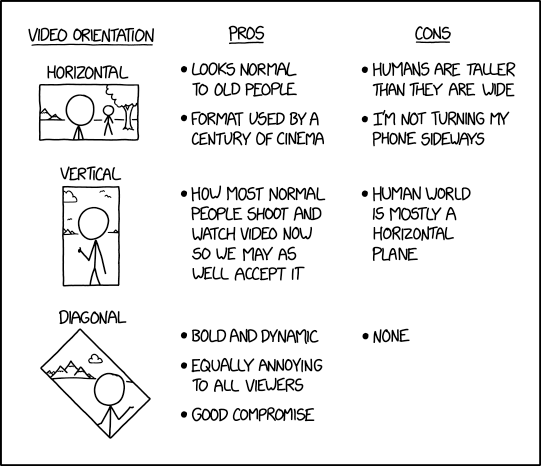
Consider the audience and how they will view your video. Will they be viewing the video on a TV/computer monitor or mobile phone?
Generally speaking, 4 to 10 second videos destined for social media consumption via a phone app may be fine filmed in portrait, but for anything longer than this viewers can find portrait (or vertical) video unpleasant so you should shoot and edit in landscape. You also loose a large part of your screen real estate when portrait video is viewed on a landscape screen, which detracts from the story you're trying to tell.
When watching vertical video on a landscape the lost space becomes jarring and can disconcert a viewer over a longer time. A few seconds of vertical video is fine for social media, but you don't want to distract from your narrative over a longer piece.
]]>
 Sound
Sound
Bad quality video with good sound is far more watchable than good quality video with bad sound.
The on-board phone or camera microphone can often lead to poor sound, an external microphone may give better results. Most phone headphones have a built in microphone which will give better results. Alternatively lavalier microphone (tie microphones) are inexpensive and give far better quality allowing more natural speech tones and patterns.
Whatever you use, test it out in the environment you'll be filming in before you start shooting to get a feel for the performance and tonal qualities.
Image sourced from Pixabay and used under terms of the creative commons license.
]]> Stabilise
Shaking camera will ruin a shot. Turn on camera stabilisation on your device or use a tripod or similar to reduce shake and create a smoother experience.
Hold the camera or phone with both hands and keep your elbows close into your body.
Small tripods are extremely useful, especially if you are trying to create stop motion animation. You can pick up a tripod and phone adapter for under £10 from the usual river based websites and online marketplaces.
For filming with a smartphone, a really cheap and easy way to stabilise is to create a chest height loop of string, stand on it and pull upwards whilst filming. This article shows the string stabilisation method as well as suggesting some other techniques.
]]>
 Practice
Whether you're using a video camera or a smartphone, make sure you know how to use it for filming.
Take a few test shots to get a feel for what works and what doesn't.
If you're planning to film outdoors, go practice outside. You'll identify potential issues and be able to address them rather than realising too late and having to reshoot a shot.
Image sourced from Pixabay and used under terms of the creative commons license.
]]> Frame the shot
Composition (framing) of shots is important for creating a mood and engaging the viewer. You want your audience to focus on the narrative you've created, not what's going on in the background. Take some time to consider your shots, particularly during the storyboard and shooting phases.
Consider using the Rule of Thirds as a quick win for your shots.
This article has some solid advice on how to compose a shot.
Image sourced from Pixabay and used under terms of the creative commons license.
]]> Lighting
Light is your friend. A badly lit shot is a shot that needs to be redone.
- Search for how to lock exposure for your camera or smartphone (and app if using one) - this stops the footage alternating between light and dark.
- But be wary of too much light, or light sources in the wrong place.
- Use natural light where possible as artificial light, such as strip lights, can look quite poor.
- Avoid filming with a subject backlit by a strong light source such as a window - this can lead to a silhouette effect.
- Look for and take advantage of natural light reflection or use white card/reflective surfaces to bounce light onto filmed subjects.
Image sourced from Pixabay and used under terms of the creative commons licence.
Enter Text Here
]]> Managing a Video Project
Video files do not behave in the same way as say a word document in that what you are saving is what you will use as the end result. There are two elements to video production
1) the Project File*
2) the finished article exported in a video format e.g. mp4
* Note that a project is a set of editing instructions rather than a completed film and only contains links to your clips.
First create a folder on your computer and download the video and audio clips to it. DO NOT edit directly from the camera or from online storage (e.g. Dropbox, Blackboard, etc).
While editing, save the project as you go. When you have finished editing, you must also save/export/share/publish the movie in a video format such as mp4 (the recommended choice). If you are given option export the file in the highest resolution possible - aim for 720 or 1080 HD.
Once you have done this check that the file plays on your computer and then upload to it's destination (e.g. YouTube, Vimeo or Re/Play). If creating video as part of an assignment the destination will be mentioned there.
Note that both the exporting from project to .mp4 and uploading can take time. Allow at least an hour to do this stage prior to the deadline. Ensure you have this time available in your planning!
Image sourced from Pixabay and used under terms of the creative commons license.
]]> Storage
Even short video files can quickly gobble up your space, so consider freeing some up before filming.
'On The Go' usb storage or cloud storage may be an option, but you'll need to test them out.
Image source from Wikimedia and used under terms of the creative commons license.
]]> Zoom with your feet
Mobile phones and small cameras use digital zoom to get closer. Essentially digital zoom means the image is cropped and then resized, no matter how expensive your phone this equates to a loss of quality.
If you need to get closer to a subject, use your feet!!
Image sourced from Pixabay and used under terms of the creative commons license.
]]> Power
Power
Filming will quickly drain battery, so make sure you're fully charged.
You don't want to have to stop midway through filming because you need to go plug yourself in.
When filming away from a plug you should consider using an external battery.
Image sourced from Pixabay and used under terms of the creative commons license
]]>Editing
Think of editing a video as a cut and paste exercise. You cut the sections of footage you want, then paste them into the correct sequence and save (render) the completed video. For simplicities sake you might film and edit on a smartphone, or you may want to edit on a laptop or computer.
Editing tools typically have a preview window, assets area and a timeline. The preview window shows t he sequenced video. The assets area contains video clips, images, audio and other other items. The timeline displays video clips in the desired sequence. Usually you can drag and drop assets into the correct order on the timeline.
There is often the ability to layer video tracks in the timeline on top of each other. Tracks at the top of a stack are visable, those below are hidden. You can often have more than one audio track too, so could have music and narration.
 Saving Video can take AGES!
The process of saving a video project is known as rendering.
Rendering an HD video is both a time consuming and resource heavy process.
Allow plenty of time and be prepared for your device to be unusable for the duration.
Don't leave rendering till the last minute and allow for the possibility of needing to re-render if you spot mistakes.
Image sourced from Pexels and used under terms of creative commons license.
]]> If you receive a text or call whilst filming your phone may stop recording. Similarly notifications from some Apps may cause issues.
Pop your phone into plane/do not disturb mode when filming to avoid this problem.
Image sourced from Pexels and used under terms of the Creative Commons licence.
]]> Copyright
(No you can't just steal that)
Video clips, images and music are all subject to copyright. Just because you're using something to educate or inform doesn't necessarily give you the rights to use it. In theory you could use copyrighted material to create content to help educate your peers, but you cannot store it anywhere publicly accessible and there are restrictions around how you can distribute it.
For the purposes of a student video project where you submit a video or audio you should not use copyrighted material, it needs to be your own work.
Try searching for content which is marked as being within the public domain or licensed for use under Creative Commons.
Searching for Creative Commons images, video and music can be done via https://search.creativecommons.org/
]]> Music
Music
Music can be a powerful tool for setting a scene, creating a feeling and hiding unavoidable background noise. Used carefully it can give a professional feel to your video.
Unfortunately we can't just use any tune we want (see the section on Copyright) but there are tools you can use to find bespoke music that's free to use.
A good place to start is https://www.freemusicarchive.org/curator/Video which has music pre-cleared for use in video.
You could also visit https://creativecommons.org/about/program-areas/arts-culture/arts-culture-resources/legalmusicforvideos/ for more Creative Commons licenced music for video.
Image sourced from Pixabay and used under terms of creative commons license.
]]>Continuity errors can stick out to viewers, they're the *equivilont* equivalent of a spelling error in a piece of text. At best they can be amusing for all the wrong reasons, at worst they make your video appear shambolic and poor quality.
Common mistakes include:
- Changes of clothes in a series of shots that give the impression of being filming at the same time
- Change of hairstyles
- Props moving around a set
- Varying volume of liquids in drinking glasses
nofilmschool has an excellent introduction to Continuity Editing.
]]>For more inspirations, help and suggestions for filming with smartphones try searching Google and social media for the terms #iphonography or #MOJO (mobile journalism).
You'll find lots of tips, tricks and workarounds for DIY videography.
The following videos from Rife magazine give plenty of great advice from professional film makers on how to get the best from a device:
]]>